Selling
Online Store
Your own shop on the internet with 50 templates: products, cart and checkout, blog, FAQ and contact.
Last updated 07 Nov 2026
Switch on Online Store in Company Profile → Features, then open Online Store.
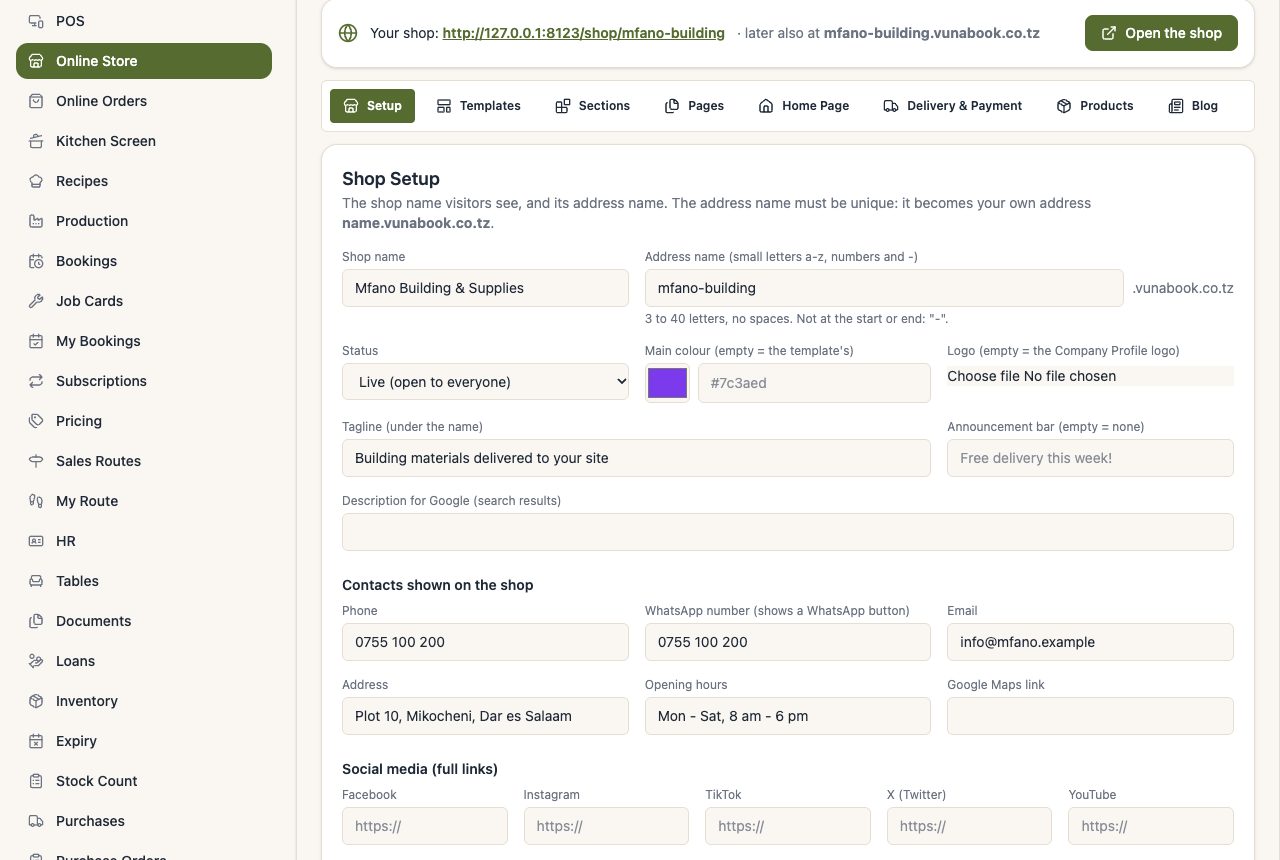
Set up your shop
- Setup: shop name, web address, contact details and whether it is open.
- Templates: choose one of 50 designs (colourful, elegant, or made for your kind of business: supermarket, pharmacy, restaurant, fashion, phones, hardware, salon, agro shop, bakery, fabrics) and your colours. Every template has a picture: click it to see it bigger, then Preview to open your own shop with it.
- Pages and Home Page: about, contact, delivery, terms, privacy; the big title, featured products and new arrivals.
- Welcome picture (Home Page tab): the photo beside the big title. Each business template comes with its own photo; upload yours to change it, or tick Remove my picture to go back to the template's.
- Delivery & Payment: delivery areas and fees, and how customers pay.
- Products: choose which products are shown online (your stock and prices are the same as in the shop).
- Blog and FAQ.
Sections: make each page your own
On the Sections tab, choose a page (Home, Shop, About us, Delivery, Contact us, FAQ, Blog, Terms, Privacy) and add ready-made sections to it: banners, sliders, picture and text, products, departments, reasons to buy, reviews, gallery, call to action, numbers, questions, team, brands, offer countdown, video, how it works, a map to find you, text and space. There are 110 designs, and each one takes the colours and letters of your template.
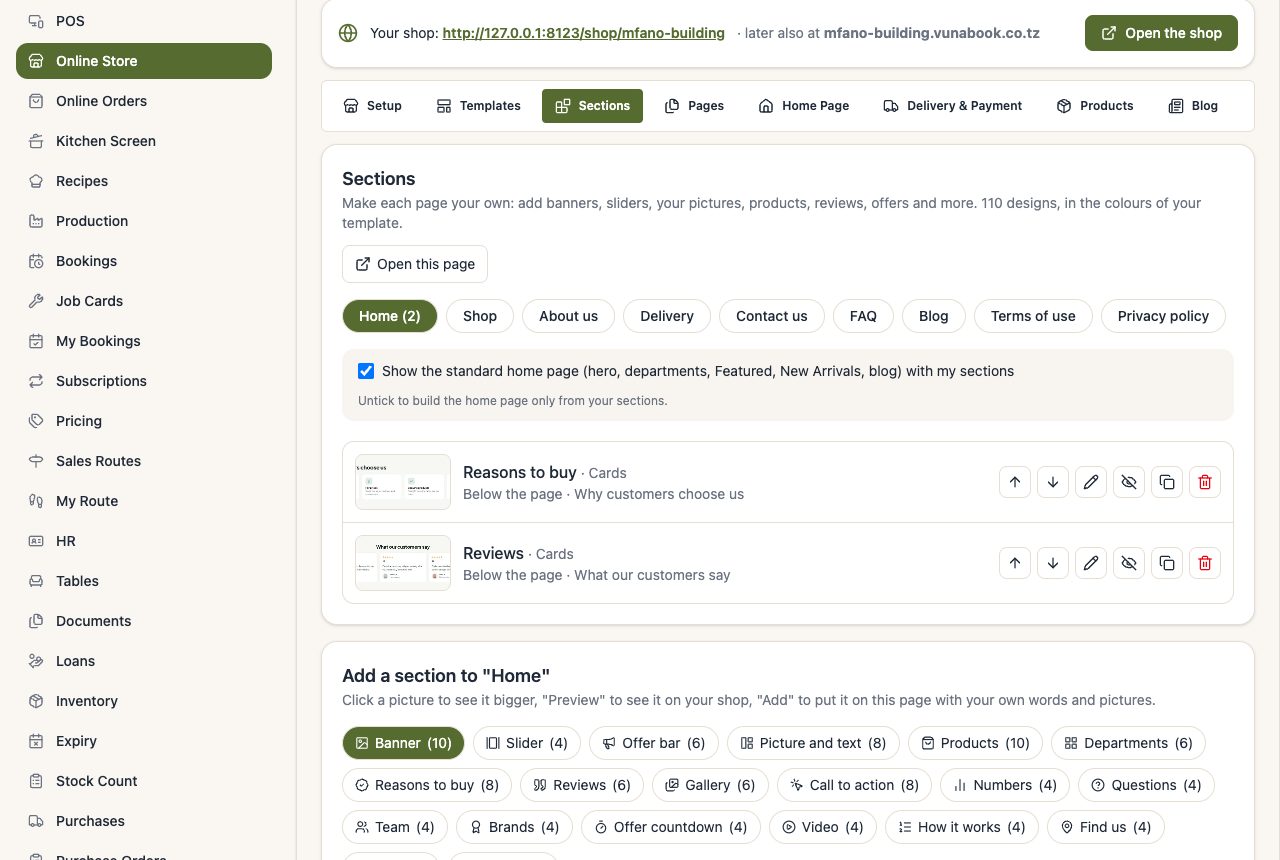
- Click a picture to see it bigger, Preview to see it on your own shop, Add to put it on the page. A new section starts with sample words: change them, and upload your own pictures (PNG, JPG or WEBP, up to 4 MB each).
- Put a section above or below the page's own content, and pick its background (page colour, light main colour, main colour or dark).
- On the list, move a section up or down, hide it (it stays saved), copy it or remove it with its pictures.
- A Products section shows featured, newest, on offer, most sold or one department. An Offer countdown hides itself after its date.
- On the Home page, untick Show the standard home page to build the home page only from your sections.
Orders and messages
Online orders arrive in Online Orders and as an alert. Confirm, prepare, deliver and mark them paid; a paid order becomes a sale. Messages from the contact page are in Messages.
What your customers see
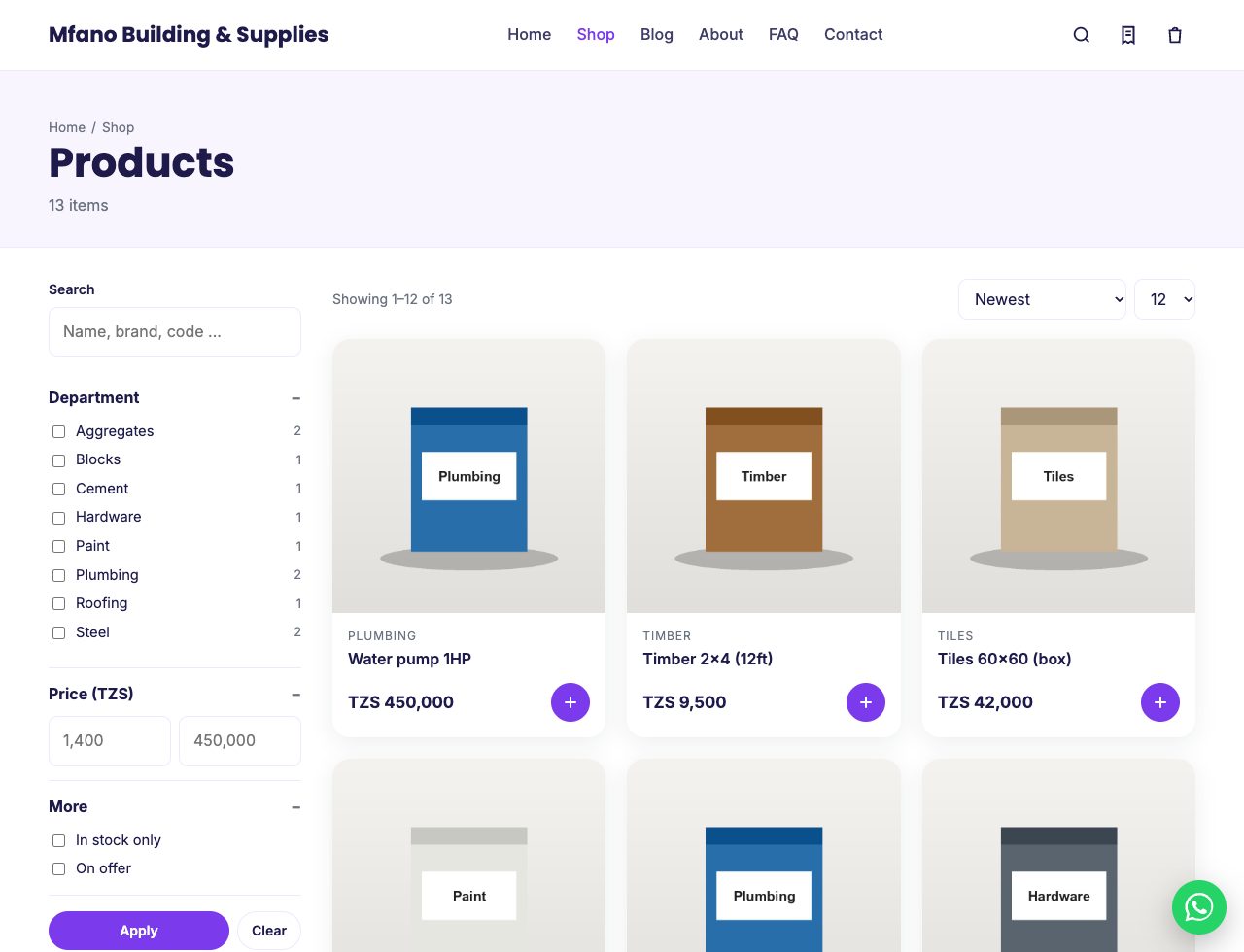
Your shop works on every template the same way: products with filters, the cart and checkout.
After ordering, the customer gets a link to the order page by SMS or email. It shows where the order is (received, confirmed, packed, on the way, delivered), what was ordered, and what is paid: Not paid, Part paid or Paid. The paid amount comes from the sale, so it changes by itself when you record a payment on the sale made from the order.
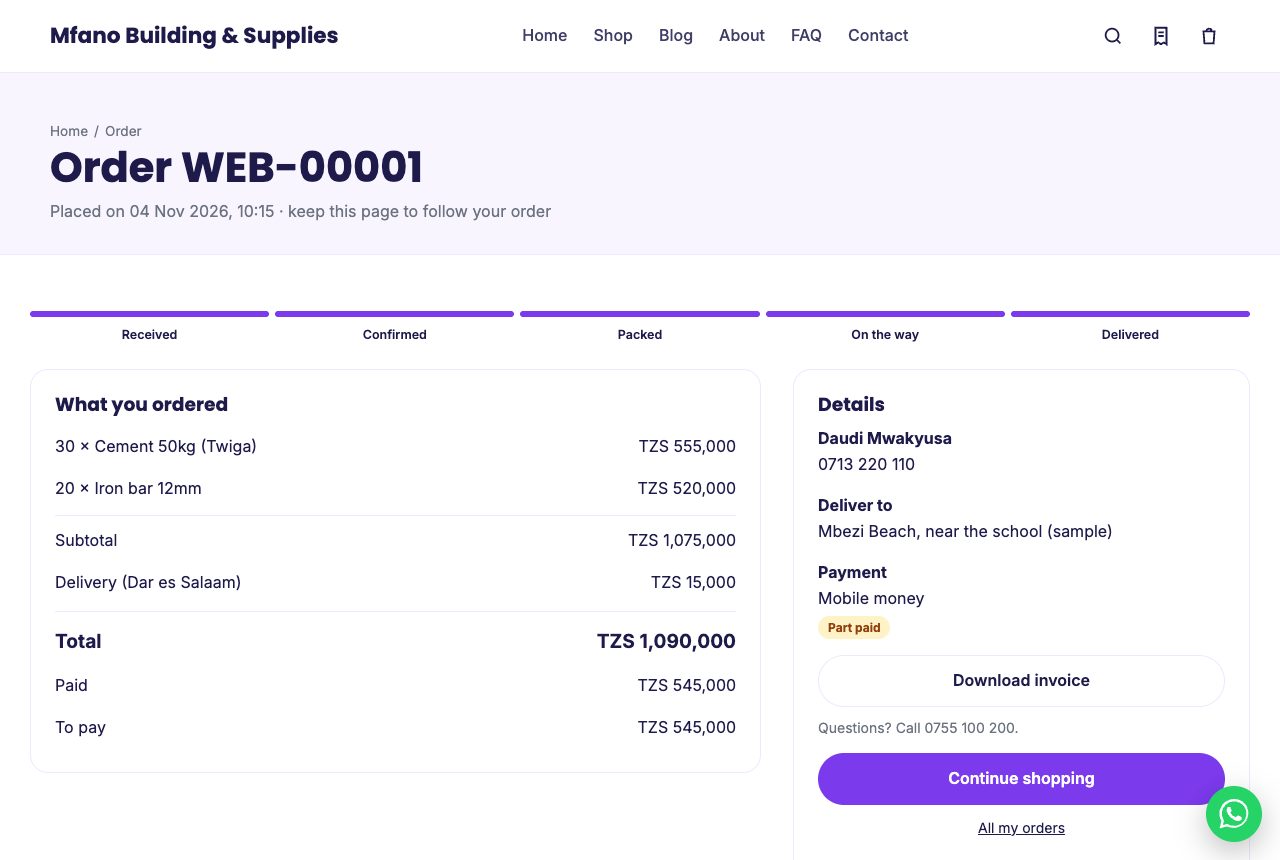
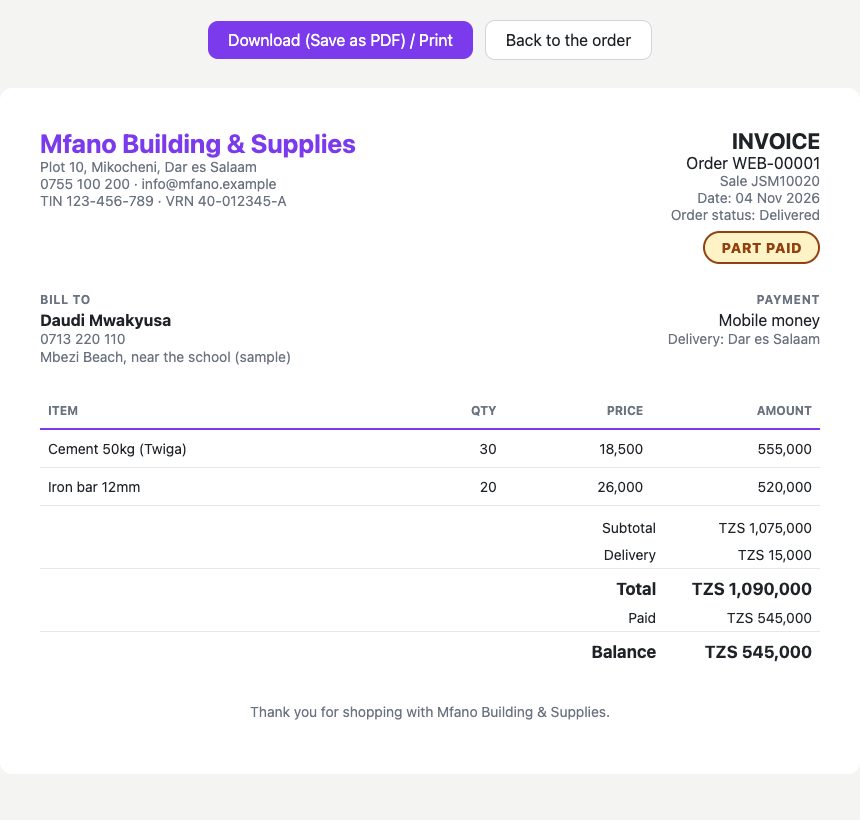
- Download invoice opens the invoice of the order with its status stamp (PAID, PART PAID, NOT PAID or CANCELLED), the balance, and your TIN, VRN and bank details. The customer prints it or saves it as PDF.
- My orders (the receipt icon at the top of every page, and in the footer) lists the orders made on that phone or computer. To find another one, the customer types the order number (like WEB-00012) and the phone they ordered with. Nobody can see orders with a phone number alone.
Your shop's address
The shop is always at /shop/<your address name>. When VunaBook switches on shop sub-domains, the same shop also opens at <your address name>.vunabook.co.tz and <your address name>.vunabook.com, with nothing to set up.